
How to Configure Grandstream Wave Softphone Mobile App
- velocityitnet6
- Nov 5, 2020
- 2 min read

Please note that when using this guide, you should follow the directions closely. Failure to follow all of these instructions may result in an unstable experience when using this mobile application.
Please follow the steps below to configure this mobile application.
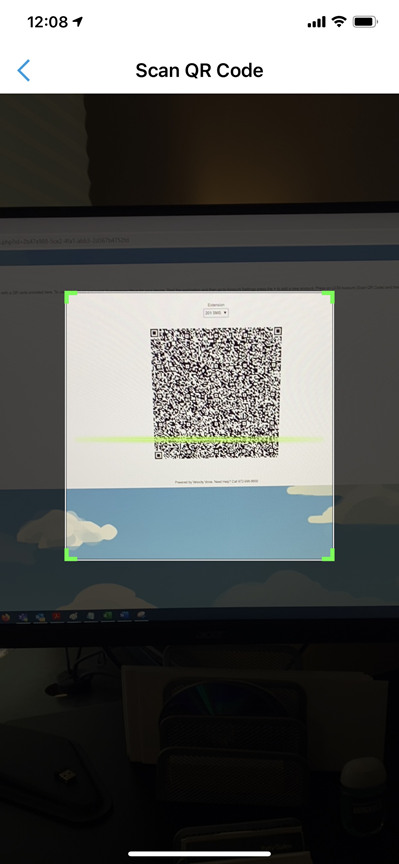
1. From the web portal, navigate to Phone System > Mobile Softphone and select the extension number that you want to configure your device for. This will generate a QR code for your extension number on your screen.
2. Download "GS Wave" from the App Store on your device.
3. Launch the app on your device and go to Settings > Account Settings > and hit the + sign to create a new account.
4. Select UCM Account (Scan QR Code) for the account type.
5. From your mobile device, scan the QR code that you generated from the web portal in Step 1. Hold your phone still, it, may take a few passes but it will take it after a few seconds.
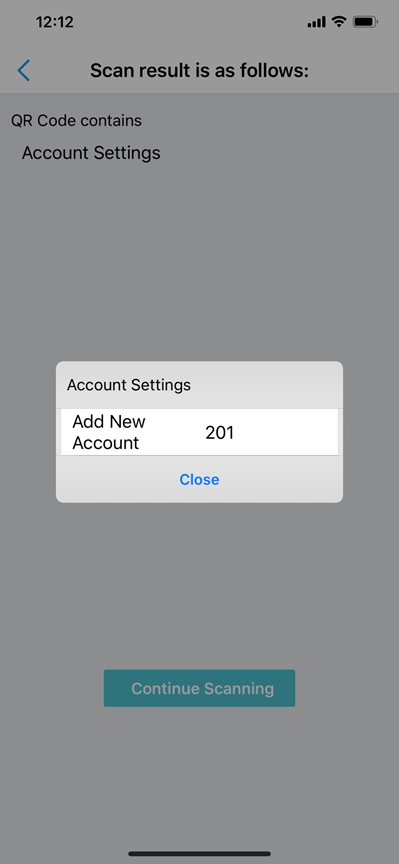
6. Once the scan completes, you will see the below prompt. Select Add New Account.

7. After that, your account will be ready for use. The "registered" indicator is on the left. Red will indicate not registered. Green will indicate registered.
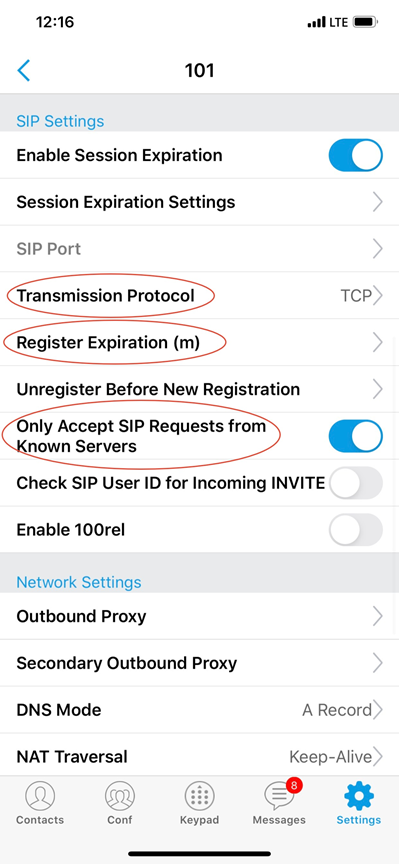
8. Select your account and scroll down to the Sip Settings section. Change the Transmission Protocol to TCP, the Register Expiration (m) to 2, and enable the option for Only Accept SIP Requests from Known Servers.

9. Scroll down to the Network Settings section and select DNS Mode and set it for SRV.

10. Scroll down to the Codec Settings section and select Preferred Vocoder and set both WiFi and 2G/3G/4G to use G729 only.

11. Finally, tap the Settings icon in the bottom right hand corner of the app and navigate to Advanced Settings. Scroll down to the Additional Settings section and disable the setting for Default Account Registration Notification.


Comments